Presets
Each DMS plugin comes with several built-in factory presets. There are a total of 128 preset slots in each plugin’s internal preset management system. Individual presets can be stored to or retrieved from preset files created by the plugin. Additionally, a collection of all 128 presets can be stored to or retrieved from bank files created by the plugin. Presets can be selected, created, copied, renamed, and re-arranged from within the plugin’s user interface.
When the plugin is first inserted on a track or channel (instantiated) in a DAW project, the built-in factory default bank of presets is loaded with the first preset (“init”) selected. After saving and re-opening a DAW project containing this plugin, for each instance of the plugin, whichever preset was selected when the DAW project was saved, along with any changes to the preset will be overwritten onto the “init” preset slot. If a bank file is loaded into the plugin when the DAW project is saved, it will be re-loaded into the plugin with the selected preset in the “init” position.
Note: if you save your DAW project after making changes to multiple presets, all of your changes except any made to your currently selected preset will be lost unless you first save your bank to a file. If you create a preset and it is not selected when you save your DAW project, that preset will be lost unless you first save it to a preset file. If a new/modified preset is selected when you save your DAW project, it will be in the “init” preset slot only on that plugin instance when your DAW project is re-opened. In all cases, it is highly recommended to save your presets and/or banks to files.
Preset Menu

The preset menu located at the top center of each plugin’s user interface can be used to select, rename, or save new presets. Clicking on it will open a drop-down menu consisting of 8 submenu items that in turn contain 16 preset slots each. To select a preset, click on the preset in the drop-down menu that you wish to load. To create, modify, or rename a preset: first select the preset slot that you wish to modify, make desired parameter changes, right-click the preset menu which will highlight the preset name, optionally enter a new name, and then either press return/enter or just click outside of the preset menu. This will save your changes to that instance of the plugin only. Please save your changes to either a preset or bank file by selecting the appropriate item in the preset file menu.
Preset File Menu
The preset file menu is accessed by clicking the folder shaped icon to the right of the parameter value display (pictured bottom-left). Clicking it will open a drop-down menu where you can increment/decrement presets, save a preset or a bank, load a preset or a bank, manage presets, or reset the currently loaded bank state to factory defaults.
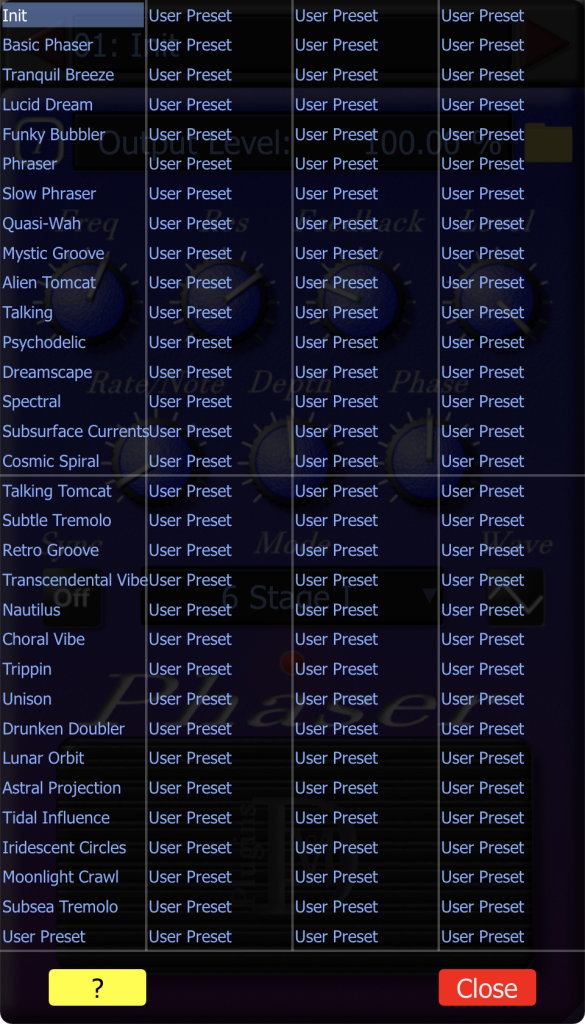
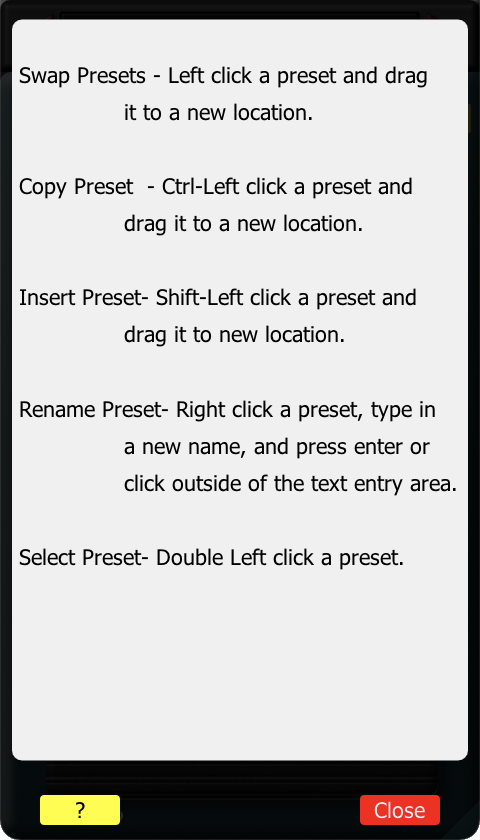
Choosing the “Manage Presets” option in the menu will open the preset management window (pictured bottom-center). Since all 128 presets are visible on the window, it is best to enlarge the window using the resizing handle to the maximum window size to make it easier to work with. The preset management window allows you to re-arrange, copy, rename, and select presets. By clicking on the yellow button on the bottom left of the window, another window will open (pictured bottom-right). This window provides help with the mouse/key combinations for performing the available functions of the preset management window.