
DMS Wah is an audio plugin in VST3* format for Windows 8 and above, or in both VST3* and AU** formats on Mac OS 10.11 and above. It is a multi-mode volume/wah effect with tempo sync capabilities. It also has a resizable user interface. While no particular hardware unit was disassembled, analyzed, or modeled in the development of this plugin, you will find that DMS Wah will produce very authentic sounding results. DMS Wah was designed to be used with a guitar along with your favorite amp simulation plugin, but can also be used effectively with other instruments. DMS Wah can be manipulated by a MIDI controller, by automation envelopes in your DAW, or by the input signal in two different automatic envelope modes. It also has a built in LFO that can be used alone or along with one of the envelope modes. Like all other plugins made by DMS Plugins, DMS Wah will be a valuable asset in your arsenal of audio tools.
* VST and VST3 are trademarks of Steinberg Media Technologies GmbH.
** The Audio Units logo is a trademark of Apple Computer, Inc.
Controls
DMS Wah’s user interface contains knobs, sliders, buttons, switches, menus, and a parameter value display control. The value of a knob or slider can be adjusted by clicking on it and dragging your mouse vertically. Double clicking will reset it to its default value. Holding your Shift key while click/dragging a knob/slider will allow you to more precisely adjust its value. For even more precise control, click on the right hand side of the value display control and enter a new value. In the case of controls with discrete values, clicking on the value display control will bring up a menu.

• Power on/off – A switch that causes a whisper quiet transition between an on and off state of the effect.
• Parameter Value display – Displays the name and value of the last touched control. It also can be used to edit the currently displayed value.
• Preset increment/ decrement buttons – The red triangle shaped buttons at the top of the UI on either side of the preset menu change the currently selected preset by one. The button on the left selects the previous preset. The one on the right selects the next preset.
• Preset menu – Used to select, rename, or create new presets. See Preset Management for detailed information.
• Info button – Opens an “about page” that contains basic information about the plugin. When the information page is open, clicking on the DMS Plugins logo will take you to the DMS Plugins website. Clicking anywhere else on the information page will close it.
• Preset file menu – Clicking on the folder shaped icon to the right of the parameter value display opens a menu for preset management/ file operations. See Preset Management for detailed information.
• Pedal – In wah mode, the pedal controls the center frequency of the wah’s bandpass filter. In volume mode, the pedal controls the volume level. Like all controls on plugins by DMS Plugins, the pedal can be controlled by an automation envelope or by right clicking on the control and assigning or “learning” a MIDI continuous controller from the DAW’s context menu.
• Wah/Vol – A switch that selects between wah and volume modes.
• Res – Regulates the resonance of the wah’s bandpass filter by adjusting the bandwidth and steepness of the filter’s cutoff frequencies. Turning the knob clockwise increases the intensity of the wah effect.
• Output– Adjusts the final stage output level.
• Heel – Sets the frequency reached when the pedal is set to the heel position (all the way up). This control has no effect when in volume mode.
• Toe – Sets the frequency reached when the pedal is set to the toe position (all the way down). By adjusting the Heel and Toe knobs, you can adjust the frequency range of the Wah. Typically, the lower frequency is at the heel position but it is possible to set the Heel and Toe controls such that the higher frequency is at the heel position and the lower frequency is at the toe position if you wish. This control has no effect when in volume mode.
• Curve – For both wah and volume modes, this control adjusts the control response to pedal movement. When the curve knob is set at the 12 o’clock position(0%), the response is linear. When it is set counter-clockwise(negative values), the response is exponential (slow near the heel position and speeding up as the pedal approaches the toe position). When it is set clockwise(positive values), the response is logarithmic (fast near the heel position and slowing down as the pedal approaches the toe position).
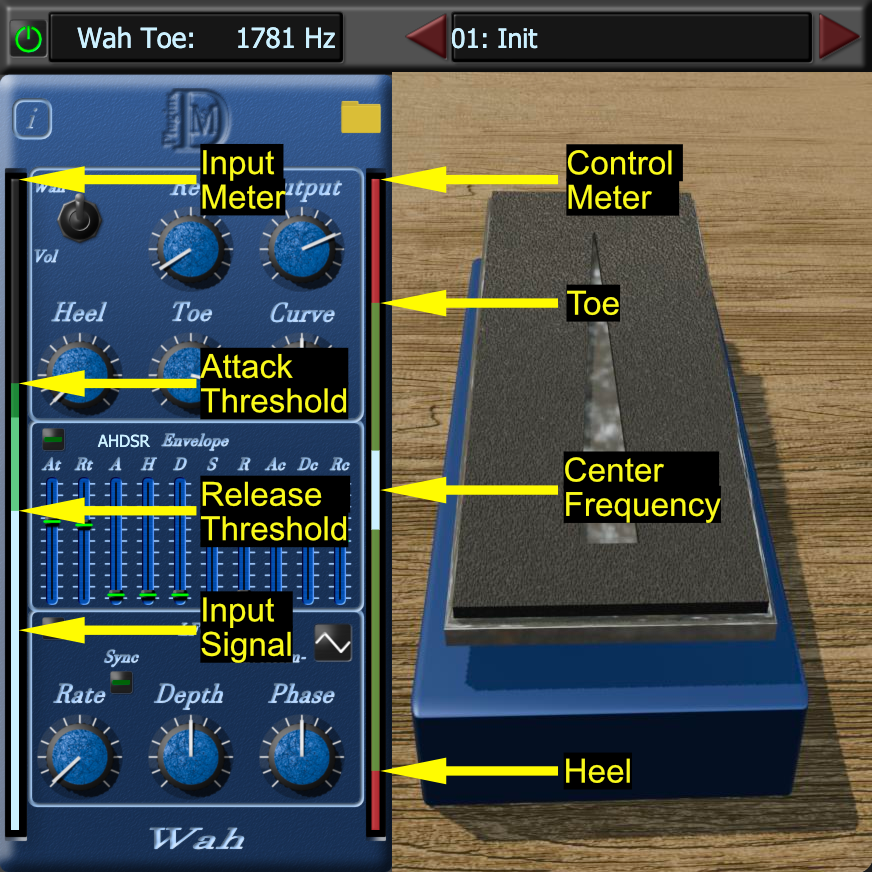
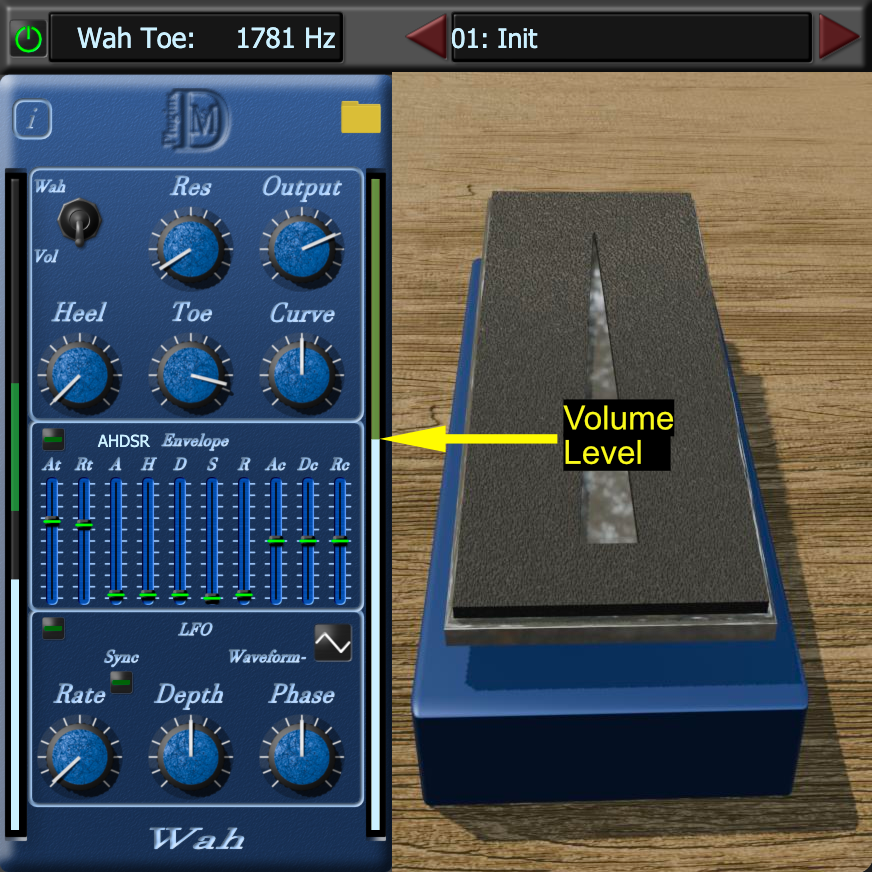
• Meters – There are two meters on DMS Wah’s user interface. They can be used for visual feedback while making adjustments to the plugin’s controls.
• The input meter, which is located on the left hand side of the UI, displays the input signal’s level as a light blue bar. The green semi-transparent bar on the input meter represents a dynamic range used for controlling either the AHDSR envelope or envelope follower when the envelope mode is active. The top of the dynamic range bar displays the attack threshold level and the bottom displays the release threshold level. Both of these levels can be adjusted for optimum performance.
• The control meter displays the center frequency of the DMS Wah’s bandpass filter while in wah mode and shows the volume level when in volume mode. When in wah mode, the frequency range of the wah is represented by a green bar and can be adjusted with the Heel and Toe knobs. The light blue bar represents the center frequency of the wah’s bandpass filter and will move up and down between the heel and toe positions according to the value from the pedal in pedal mode, the envelope in envelope mode, or the LFO in LFO mode. Note that it is also possible to operate the plugin with both the envelope and LFO modes active for some very interesting results. The center frequency bar’s width visually indicates the bandwidth of the filter and will change when adjusting the Res knob to reflect the resonance of the bandpass filter. When in volume mode, the light blue bar indicates the current volume level as set by the pedal, AHDSR envelope, envelope follower, or LFO.


• Envelope on/off – Turns envelope on or off. There are two envelope modes.
• AHDSR Envelope: This mode stands for Attack, Hold, Decay, Sustain, and Release. It is triggered when the input level exceeds the attack threshold setting and enters its release stage when the input level falls below the release threshold level. While the input level is between the attack and release threshold settings, it will cycle through it’s other stages according to its parameter settings.
• Envelope Follower: This mode is also triggered and released by the input signal, but is different in that its control output follows the input signal level.
• At – The attack threshold is the level in decibels that when exceeded, will trigger the AHDSR envelope. When this control is set at less than -59dB, the envelope mode will be set to Envelope Follower, otherwise it will be set to AHDSR Envelope.
• Rt – The release threshold is set as a percentage of the attack threshold and is therefore a level relative to the attack threshold. It is the level at which the AHDSR envelope will enter the release stage.
• A – Attack Time (AHDSR and Envelope Follower modes) is the amount of time in milliseconds (or note duration when tempo sync is active) that it takes the control level to reach its maximum level.
• H – Hold Time (AHDSR mode only) is the amount of time in milliseconds (or note duration when tempo sync is active) that the control level will remain at its peak level before entering the Decay stage.
• D – Decay Time (AHDSR mode only) is the amount of time in milliseconds (or note duration when tempo sync is active) that the control level will take to reach its sustain level.
• S – (AHDSR and Envelope Follower modes) In AHDSR mode, this controls the Sustain level of the envelope. It is the control level reached at the end of the decay stage. In Envelope Follower mode, this controls the dynamic sensitivity of the envelope follower. Lower values are less sensitive and higher values are more sensitive to changes in input levels.
• R – Release Time in AHDSR envelope mode is the amount of time in milliseconds (or note duration when tempo sync is active) that the AHDSR envelope’s control level will take to reach zero from whatever the sustain sustain level is at the time the envelope reaches the release stage (when the input signal level drops below the release threshold). In envelope follower mode, it is the time it takes for the envelopes control level to drop as the input signal decays.
• Ac – Attack curve adjusts the control response in the envelope’s attack stage. Negative values = exponential response, 0% = linear response, positive values = logarithmic response.
• Dc – Decay curve adjusts the control response in the envelope’s decay stage. Negative values = exponential response, 0% = linear response, positive values = logarithmic response.
• Rc – Release curve adjusts the control response in the envelope’s release stage. Negative values = exponential response, 0% = linear response, positive values = logarithmic response.
• LFO on/off – Turns the LFO (low frequency oscillator) on and off. The LFO can be used together with one of the envelope modes. When both LFO and Envelope are active, the LFO’s depth parameter is modulated by the output of the envelope.
• Sync – Turns tempo sync on and off. When active, all time based parameter values are expressed as musical note/measure durations and remain synchronized through tempo/ time signature changes in your DAW project.
• Waveform – Cycles the LFO periodic waveform between a sine and triangle wave.
• Rate – The rate at which the LFO completes one cycle of a periodic waveform. When tempo sync is off, this knob controls the LFO rate in Hz. When tempo sync is on, it regulates the LFO rate to correspond to the selected measure or note duration.
• Depth – Regulates the amount that the bandpass filter or volume is modulated by.
• Phase – Adjusts the location within the waveform generated by the LFO that is considered the “start” of the periodic waveform. Only relevant when Sync is on and DAW’s transport is running.
• Resizing handle – Hovering your cursor over the bottom-right corner of the plugin will expose a triangle that when clicked and dragged, will enlarge or reduce the plugin’s size.
Requirements
- Windows 8 (64 bit) or later
- macOS 10.11 or later
- VST compatible host software on both Mac and Windows
- Audio Units compatible host on Mac
