
DMS Delay is an audio plugin in VST3* format for Windows 8 and above or in both VST3* and AU** formats on macOS 10.11 and above. It produces high quality delay effects. It also has a resizable user interface. While no particular hardware unit was disassembled, analyzed, or modeled in the development of this plugin, you will find that certain settings of DMS Delay and/or variations of it’s placement in the signal chain will produce very authentic sounding results. DMS Delay was designed to be used with a guitar along with your favorite amp simulation plugin, but also sounds great with other instruments. When operating in tempo sync mode, it handles changes in tempo and time signature very well. Like all other plugins made by DMS Plugins, DMS Delay will be a valuable asset in your arsenal of audio tools.
* VST and VST3 are trademarks of Steinberg Media Technologies GmbH.
** The Audio Units logo is a trademark of Apple Computer, Inc.
Controls
DMS Delay’s user interface contains knobs, buttons, switches, menus, and a parameter value display control. The value of a knob can be adjusted by clicking on it and dragging your mouse vertically. Double clicking a knob will reset it to its default value. Holding your Shift key while click/dragging a knob will allow you to more precisely adjust its value. For even more precise control, click on the right hand side of the value display control and enter a new value. In the case of controls with discrete values, clicking on the value display control will bring up a menu.

• Preset increment/ decrement buttons – The red triangle shaped buttons at the top of the UI on either side of the preset menu change the currently selected preset by one. The button on the left selects the previous preset. The one on the right selects the next preset.
• Preset menu – Used to select, rename, or create new presets. See Preset Management for detailed information.
• Info button – Opens an “about page” that contains basic information about the plugin. When the information page is open, clicking on the DMS Plugins logo will take you to the DMS Plugins website. Clicking anywhere else on the information page will close it.
• Parameter Value display – Displays the name and value of the last touched control. It also can be used to edit the currently displayed value.
• Preset file menu – Clicking on the folder shaped icon to the right of the parameter value display opens a menu for preset management/ file operations. See Preset Management for detailed information.
• Delay Time – Adjusts the delay time from 0 to 2 seconds. When tempo sync is off and adjusting the delay time, you will hear a change in pitch as if a tape player was being sped up or slowed down. When tempo sync is on, you can select between different note durations by either turning the knob or selecting from a menu in the parameter value display. When the delay time is changed by a change in tempo or time signature change, there is no “tape player” effect.
• Feedback – Adjusts the level of each delay line’s output fed back into its input. Turning it up will increase the time it takes for the echos to decay to silence.
• Spread – Adjusts an offset in delay time applied to the right channel to create stereo imaging or ping pong type effects.
• Tone – Adjusts the tone of the delayed signal. Turning this knob to the left darkens or cuts high frequencies. Turning this knob to the right brightens the tone of the delayed signal.
• Dry Out – Adjusts the output level of the unaltered input signal.
• Wet Out – Adjusts the output level of the processed signal.
• Sync – A switch that turns tempo sync mode on and off. When sync is enabled, this plugin will remain synchronized to your DAW project while it is recording or playing, even during tempo and time signature changes. Also, the delay time can be set by a menu in the parameter value display as well as by turning the delay time knob when the tempo sync switch is on.
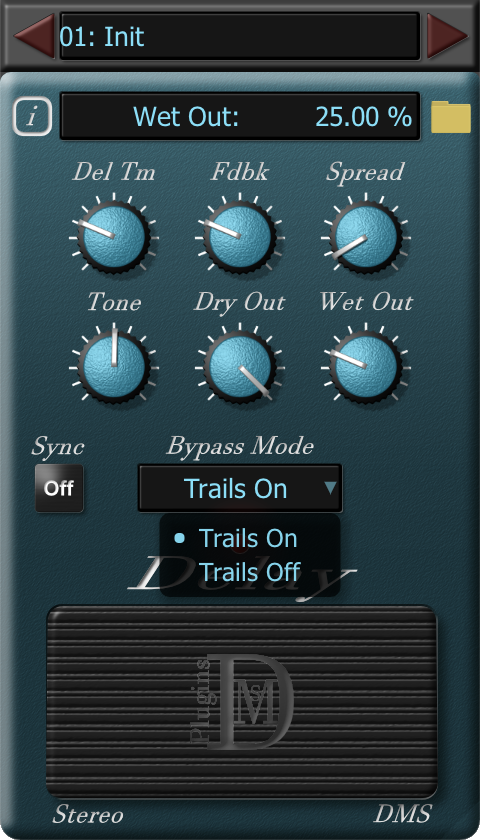
• Bypass Mode – A menu from which you can select between whether or not the echo trails continue when bypassing the effect.
• Bypass – A switch that causes a whisper quiet transition to and from bypass.
• Resizing handle – Hovering your cursor over the bottom-right corner of the plugin will expose a triangle that when clicked and dragged, will enlarge or reduce the plugin’s size.
Requirements
- Windows 8 (64 bit) or later
- macOS 10.11 or later
- VST compatible host software on both Mac and Windows
- Audio Units compatible host on Mac
